
BetterTouchTool is a great, feature packed app that allows you to customize various input devices on your Mac. You can use it to open a Kando menu via touchpad gestures or a mouse button.
BetterTouchTool (macOS)

GUI Configuration
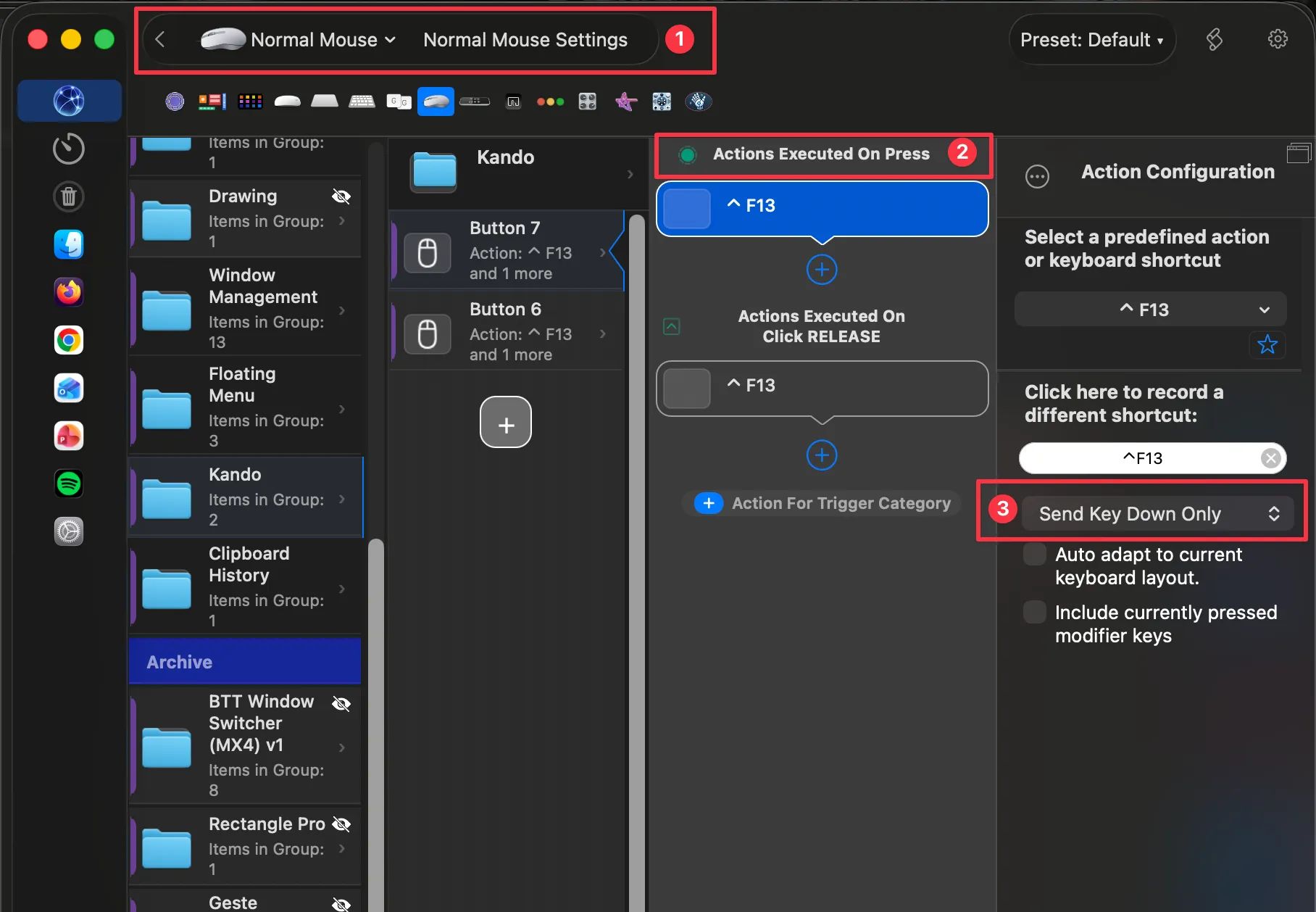
Section titled “GUI Configuration”- In BetterTouchTool navigate to the ‘Normal Mouse’ section. There, create a Trigger with the mouse button you want to use (in the example it’s mouse button 7).
- Create an action under ‘Actions Executed On Press’.
- Select ‘Send Key Down Only’.
- Similarily, under ‘Actions Executed On Click RELEASE’ create a action that ‘Send Key Up Only’.
JSON Configuration
Section titled “JSON Configuration”Alternatively, you can also Copy & Paste the example code below, to send the keyboard shortcut ‘CTRL + F13’ when pressing the mouse button 7
[ { "BTTLastUpdatedAt" : 1772350987.4586649, "BTTTriggerType" : 1007, "BTTTriggerTypeDescriptionReadOnly" : "Button 7", "BTTTriggerParentUUID" : "1345F060-135B-4341-B6F0-E7480914A160", "BTTTriggerClass" : "BTTTriggerTypeNormalMouse", "BTTUUID" : "95B2EC52-89A1-4B3D-A12F-783D55A1DF10", "BTTOrder" : 8, "BTTActionsToExecute" : [ { "BTTLastUpdatedAt" : 1772351016.1467381, "BTTTriggerParentUUID" : "95B2EC52-89A1-4B3D-A12F-783D55A1DF10", "BTTIsPureAction" : true, "BTTTriggerClass" : "BTTTriggerTypeNormalMouse", "BTTUUID" : "0F38CC89-29A3-45F3-A993-E5C59B206009", "BTTLayoutIndependentActionChar" : "F13", "BTTGenericActionConfig2" : "onlyDown", "BTTShortcutToSend" : "59,105", "BTTShortcutUpDown" : "onlyDown", "BTTOrder" : 0 }, { "BTTActionCategory" : 31, "BTTLastUpdatedAt" : 1772351022.5314541, "BTTTriggerParentUUID" : "95B2EC52-89A1-4B3D-A12F-783D55A1DF10", "BTTIsPureAction" : true, "BTTTriggerClass" : "BTTTriggerTypeNormalMouse", "BTTUUID" : "97337D1F-B44B-4F00-B47F-35959C8723D8", "BTTLayoutIndependentActionChar" : "F13", "BTTGenericActionConfig2" : "onlyUp", "BTTShortcutToSend" : "59,105", "BTTShortcutUpDown" : "onlyUp", "BTTOrder" : 2 } ] }]