
Input Remapperis a tool which allows you to remap mouse buttons to keyboard shortcuts. While you can use it directly to bind menus to mouse buttons via keyboard shortcuts, it also allows for more advanced setups like showing menus when pressing two mouse buttons at the same time.
Input Remapper (Linux)

Introduction
Section titled “Introduction”Input Remapper is a Linux-only tool which allows you to remap mouse or controller buttons to keyboard shortcuts. While you can use it directly to bind menus to mouse buttons via keyboard shortcuts, it also allows for more advanced setups like showing menus when pressing two mouse buttons at the same time.
Get Input Remapper from GitHub: https://github.com/sezanzeb/input-remapper
You can visit the repository to learn about installation and general usage. This guide here will focus specifically on how to work with Kando.
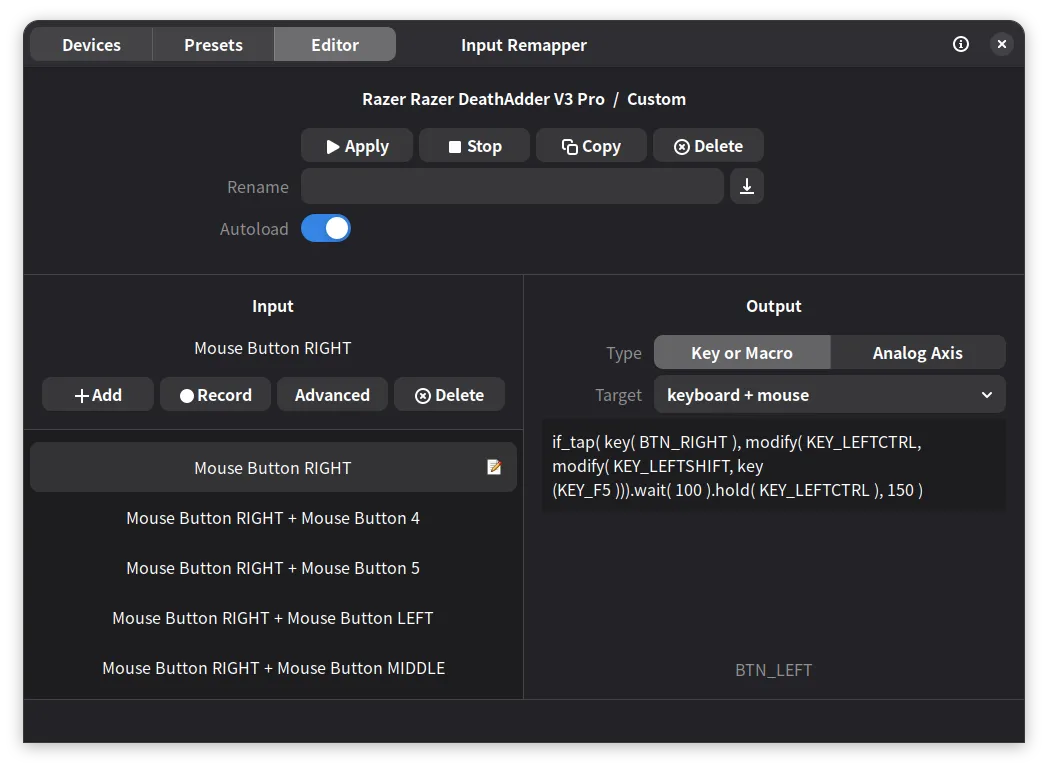
Configuration
Section titled “Configuration”In this guide, we will explore three ways to trigger a Kando menu through Input Remapper. First, we will look at the simplest method of directly mapping a mouse button to a keyboard shortcut. Then, we will explore how to trigger a menu with a long press of a mouse button while keeping the original function on tap. Finally, we will see how to trigger a menu by holding one mouse button and tapping another.
Option 1: Direct Shortcut Mapping
Section titled “Option 1: Direct Shortcut Mapping”This is the simplest method. Pressing a single mouse button triggers the Kando menu. In the Input pane on the left, add a new mapping and record the mouse button you want to use. In the output pane on the right, set the type to “Key or Macro” and the target to “keyboard” and type in the shortcut you want to use to trigger the Kando menu:
KEY_LEFTCTRL + KEY_LEFTSHIFT + KEY_F1After applying the changes, pressing the mouse button will trigger the Kando menu assigned to Ctrl+Shift+F1.
- Pros: Fast response with zero latency; simple setup.
- Cons: The button loses its original function, only suitable for mice with extra buttons.
Option 2: Long Press Mouse Button
Section titled “Option 2: Long Press Mouse Button”With the following configuration, a long press triggers the Kando menu, while a short press (tap) retains the button’s original function. The following example uses the Right Mouse Button.
First, bind the right mouse button in the Input pane on the left. Then, in the output pane on the right, set the type to “Key or Macro” and the target to “keyboard + mouse” and use the following configuration:
if_tap( key( BTN_RIGHT ), modify( KEY_LEFTCTRL, modify( KEY_LEFTSHIFT, key (KEY_F1 ))).wait( 100 ).hold( KEY_LEFTCTRL ), 150 )- Pros: Preserves the button’s original tap functionality, you can directly engage in Marking Mode by holding the button without the need for an additional mouse click.
- Cons: You lose the button’s original hold function; holding and dragging will now interact with the Kando menu instead.
Option 3: Combining Two Mouse Buttons
Section titled “Option 3: Combining Two Mouse Buttons”Triggered by holding the right mouse button and tapping the left.
Keep the right mouse button held and drag after the menu opens to engage in Marking Mode.
If you click left again while the menu is open, it will cycle through the different menus you have bound to Ctrl+Shift+F1.
Bind the following to the right mouse button with target type “keyboard + mouse”:
if_tap( key( BTN_RIGHT ), hold( KEY_LEFTCTRL ))Then, bind the following to the left mouse button and the right mouse button (press both simultaneously when recording) with target type “keyboard”:
KEY_LEFTCTRL + KEY_LEFTSHIFT + KEY_F1- Pros: Allows you to hold right click and tap left click multiple times to quickly toggle between menus assigned to the same shortcut.
- Cons: You lose the button’s original hold function; holding and dragging will now interact with the Kando menu instead.