
You can use this action to automate tasks that require multiple keyboard shortcuts or key presses in sequence.
Execute Macro
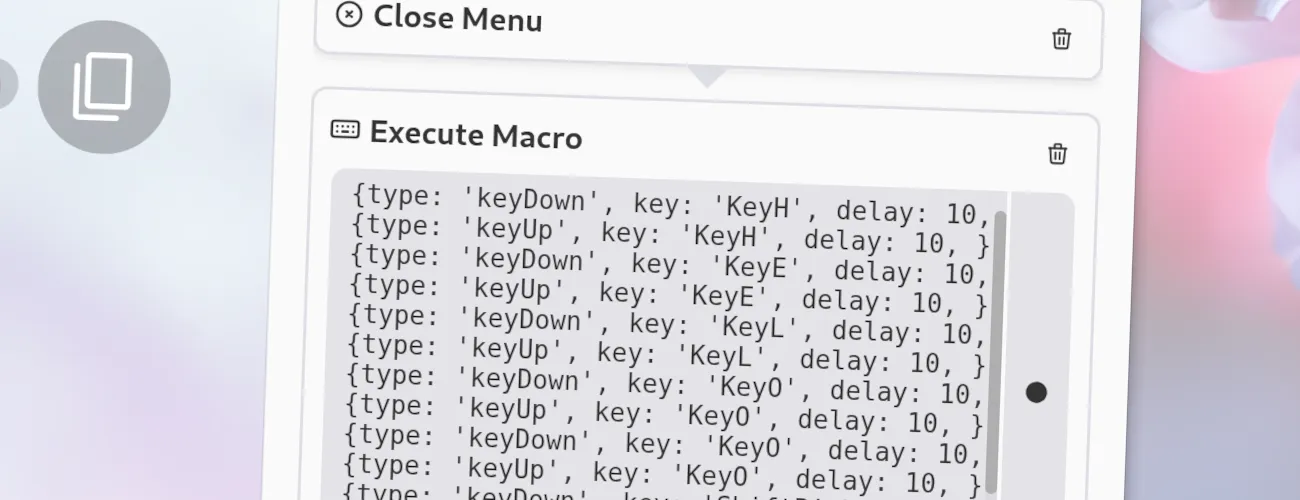
You can use the menu editor to record a complete macro and edit the recorded events if needed. It is perfectly fine to edit the recorded macro to fine-tune it or to add delays between key presses if needed.
Options
Section titled “ Options”The action does not have any options besides the macro itself, which is a list of key events that will be executed in order.
Example Configuration
Section titled “ Example Configuration”If you edit your menus.json file by hand or use the IPC interface, you can create this action with something like the following.
This action will type “Hi” on most keyboard layouts:
..."selectWorkflow": { "actions": [ ... { "type": "execute-macro", "macro": [ { "type": "keyDown", "key": "ShiftLeft", "delay": 10 }, { "type": "keyDown", "key": "KeyH", "delay": 10 }, { "type": "keyUp", "key": "KeyH", "delay": 10 }, { "type": "keyUp", "key": "ShiftLeft", "delay": 10 }, { "type": "keyDown", "key": "KeyI", "delay": 10 }, { "type": "keyUp", "key": "KeyI", "delay": 10 } ], }, ... ]}...